linux: setting a custom resolution via EDID editing
You probably don’t want this, so stoots posted it anyways: a guide on how to set a custom resolution on (at least) Fedora and Debian.
(Actually, this is both demo and slightly practical content to coincide with this place’s new existence)
identify the GPU output ports that are being used
This sometimes appears in a GUI monitors settings application like KDE’s System Settings.
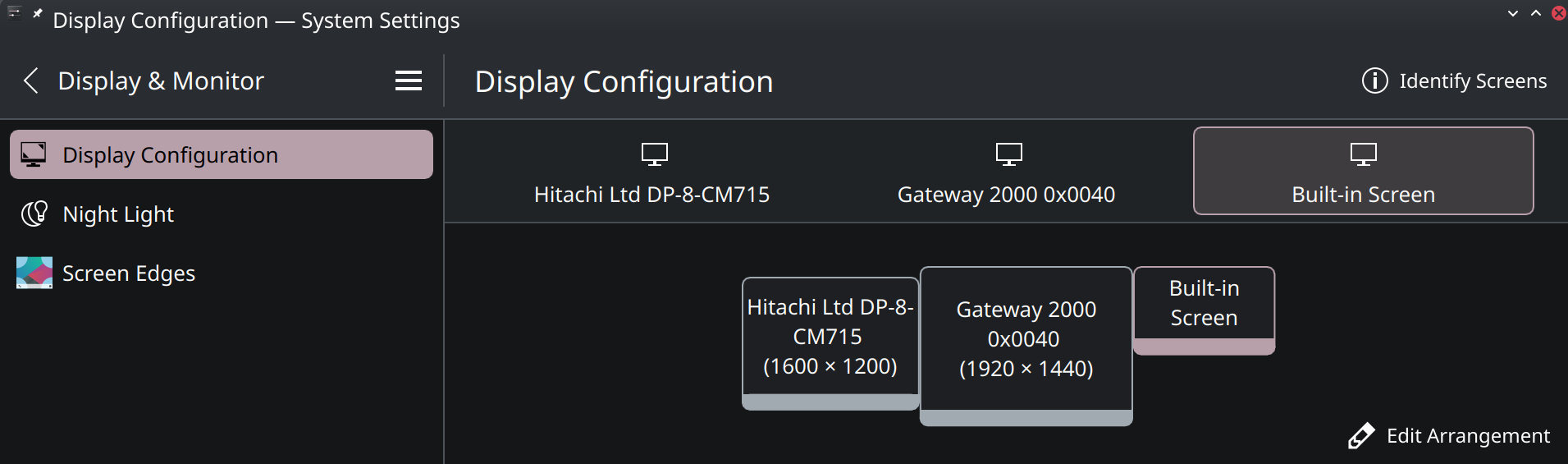
A more reliable way to do that is iterating through /sys/class/drm/ and seeing if each of the folders has an edid 128 byte-sized binary file.
In stoots’ case as bound to a USB-C dock (Dell WD19S), stoots had subdirs:
card0-DP10to stoots’ first CRTcard0-DP11to stoots’ second CRTcard0-DP12which is an unplugged USB-C DP Alt Mode port
Save the edid files from each directory as .bins elsewhere:
cat /sys/class/drm/<interface name>/edid > name.bin
You now have EDID files to mangle elsewhere. Sections below discuss Custom Resolutions Utility (CRU) usage, but you’re free to use any other tool for this.
use CRU
In the program, click Import… at the bottom left corner.
- Do enable “Import complete EDID” in the file picker when importing.
make your changes
Detailed resolutions pane | Add… (or Edit… one of the existing 4 slots if full and you can’t/don’t want to delete a resolution, because you’re addicted to 800x600x144hz and every +res -Hz step in a staircase)
editing the fields
- Parameters | Active | Horizontal: horizontal pixel count
- Parameters | Active | Vertical: vertical pixel count/lines
- Frequency | Refresh rate: Vertical refresh rate here (the refresh rate that gets talked of in monitor specs, like 60Hz, 144Hz, etc.)
- Keep an eye on Frequency | Horizontal: this will often be bounded by the monitor’s limits (see its spec page, manual, EDID, or the internet)
After inputting valid and desired resolutions (within the limits of your monitor), check the Timing: dropdown to use the CVT standard for CRTs or CVT-RB(2) for LCDs; this gets done last, as it appears to be an oversight in CRU itself where selecting the timing standard beforehand won’t update the other inputs across the page.
The Pixel clock field should update. If you have a DisplayPort to VGA adapter, keep an eye on this Frequency | Pixel clock: as the cheapest (and by far, the most common) ones will reject anything above 180MHz; limits to 400MHz were standard on RAMDACs until they disappeared after Nvidia Maxwell 2 (900 series) and AMD Tonga (R9 380/285).
save your work and exit
- Export… from CRU to new .bin files
- Move said .bin files to
/usr/lib/firmware/edid/(make the dir if it doesn’t exist)
This will immediately catch fire and die the moment one stops using exactly these monitors. Conversely, Windows stores then in a slightly less annoying means by way of GPU instance-bound ‘monitors’ instead of binding them to generic not-unique display interfaces
load the firmware at boot
(This section was taken from someone else on the internet; attribution pending.)
This gets done to force the firmware to load at boot. Otherwise, the EDID is only applied when the display outputs are created (that is, when it’s plugged in while already booted).
Debian: create an initramfs-tools hook at /usr/share/initramfs-tools/hooks/copy_edid and chmod +x it.
contents:
#!/bin/sh -e
if [ "$1" = "prereqs" ]; then exit 0; fi

. /usr/share/initramfs-tools/hook-functions

mkdir -p $DESTDIR/usr/lib/firmware/edid
cp /usr/lib/firmware/edid/edided-21tx.bin $DESTDIR/usr/lib/firmware/edid/edided-21tx.bin
cp /usr/lib/firmware/edid/edided-cm715.bin $DESTDIR/usr/lib/firmware/edid/edided-cm715.bin
Then update initramfs:
update-initramfs -uv
This can’t be avoided, as kernel modesetting (KMS) occurs too early otherwise and the modified EDID files aren’t read during boot otherwise.
tell the kernel to use our edited EDID files
Instructions for editing the kernel command line assume you’re using GRUB2.
Edit the kernel cmdline to reference the new EDID files:
drm.edid_firmware=<interface name 1>:edid/<bin1.bin>,<interface name N>:<binN.bin>
These changes were applied to:
- (Debian 13)
/etc/default/grub(file), then ranupdate-grubafterward - (Fedora 43)
/boot/grub2/grub.cfg(file), then rangrub2-mkconfig -o /boot/grub2/grub.cfgafterward
Here, <interface name>s were DP-8 and DP-9 because plugging in the dock at a later time or a different port or some other event had changed them to DP-10 and DP-11 during the first run.
stoots later got some modicum of consistency after reboot as they settled to DP-8 and DP-9.